APEX Interactive Report: Adding a Clickable Icon to perform actions - Part 2

In my previous blog post, we discussed how users could repeatedly mark a product as received by clicking on an icon, even after it had already been received. This issue highlights a design flaw that impacts user experience.
To address this, we've decided to revise our requirement: instead of having separate columns for "Status" and "Mark as Received," we'll merge them into a single column. This means displaying a "check" icon if the product has been received and a "gear" icon if it hasn't.
Now, let's explore how we can accomplish this.
First, we will see how we can display two different icons in a single column according to our requirements. In APEX, you can do this in multiple ways.
The first way is to embed.
First, we have to create a report using query.
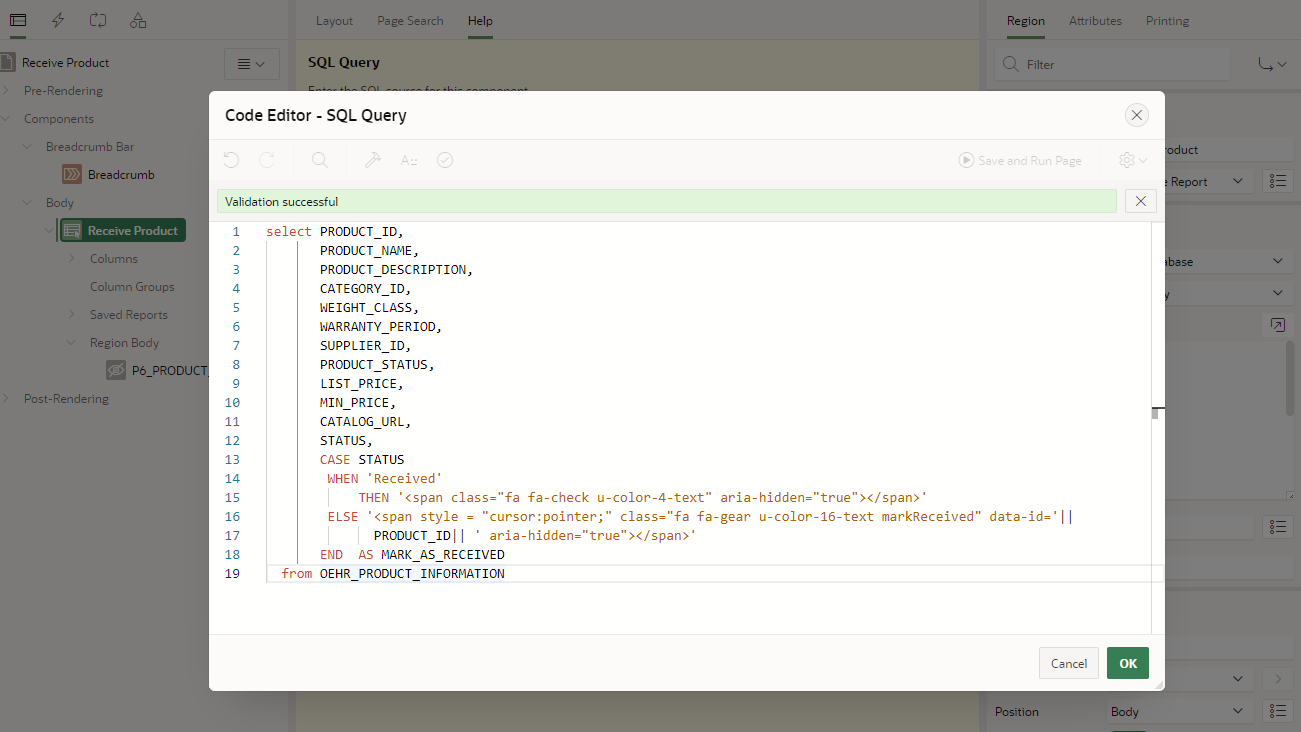
Let's first understand the logic behind the MARK_AS_RECEIVED column.
CASE STATUS
    WHEN 'Received'
       THEN '<span class="fa fa-check u-color-4-text" aria-hidden="true"></span>'
    ELSE '<span style = "cursor:pointer;" class="fa fa-gear u-color-16-text markReceived" data-id='||
              PRODUCT_ID|| ' aria-hidden="true"></span>'
END  AS MARK_AS_RECEIVED
I have used CASE expression to conditionally generate HTML code based on the value of the "STATUS" column.
If the "STATUS" is 'Received', it returns an HTML span element with a checkmark icon represented by the class "fa fa-check" and a specific color represented by the class "u-color-4-text". If the "STATUS" is not 'Received', it returns an HTML span element with a gear icon represented by the class "fa fa-gear", with additional attributes such as cursor style ( represented by the class "u-color-16-text" ), class "markReceived" (will use this in Dynamic Action to trigger the click event on icon click) and data-id attribute containing the PRODUCT_ID.
Save and Run the report.
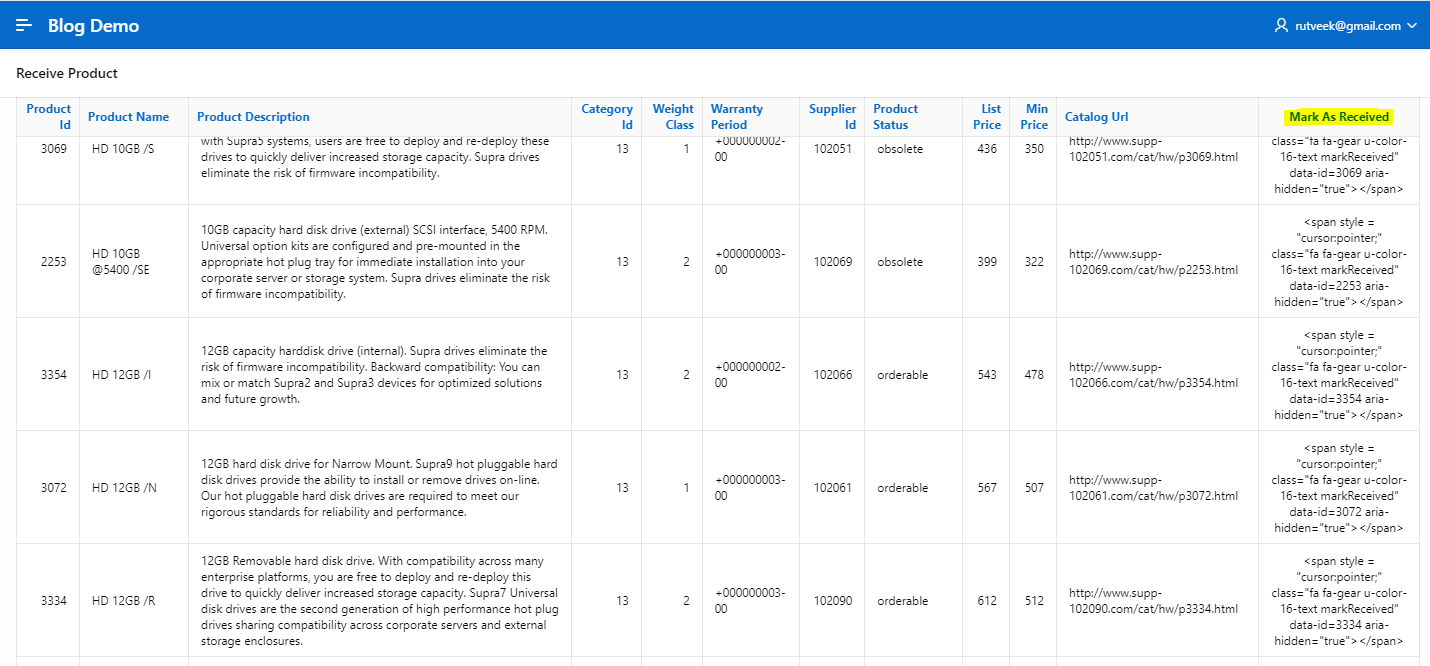
You'll notice that instead of rendering the icon in the "Mark as Received" column, it's displaying the HTML expression itself.
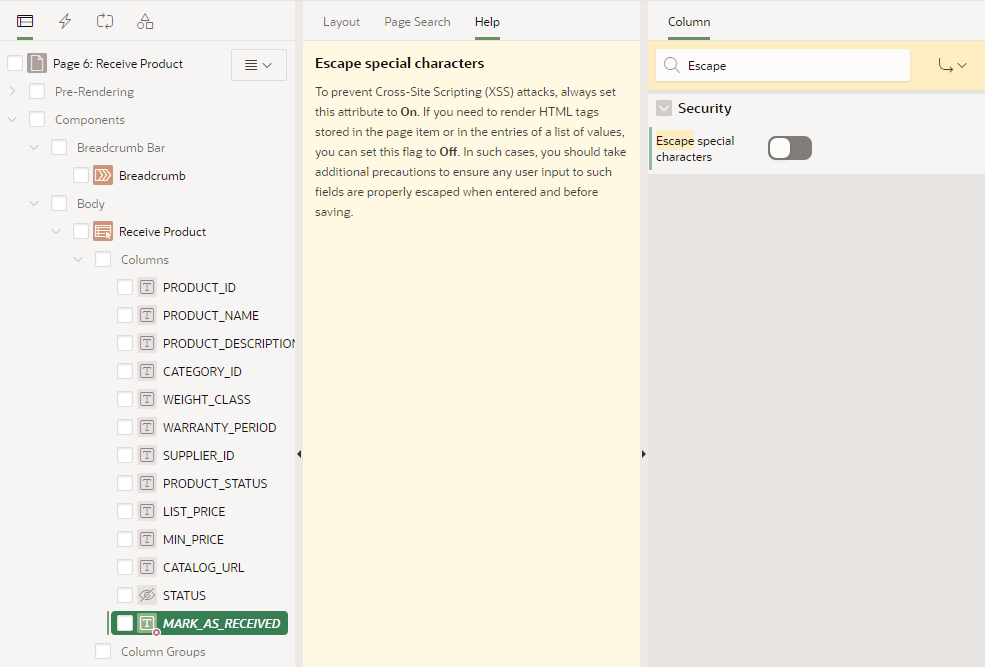
This occurs because we need to disable the "Escape special characters" attribute for this column.
Now, save and run the report again, and you'll observe the icons displayed in the "Mark as Received" column.
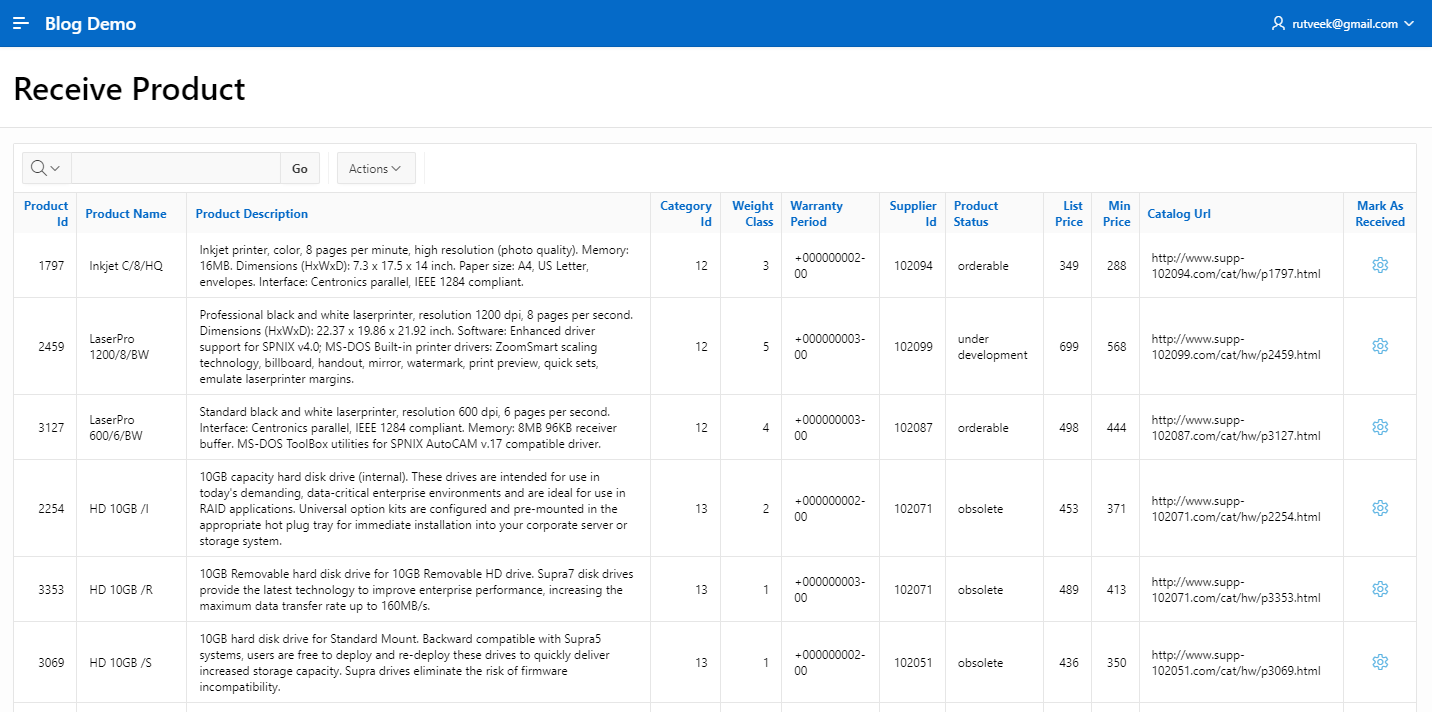
Now that we've successfully displayed the icon on the report, the next step is to create a dynamic action.
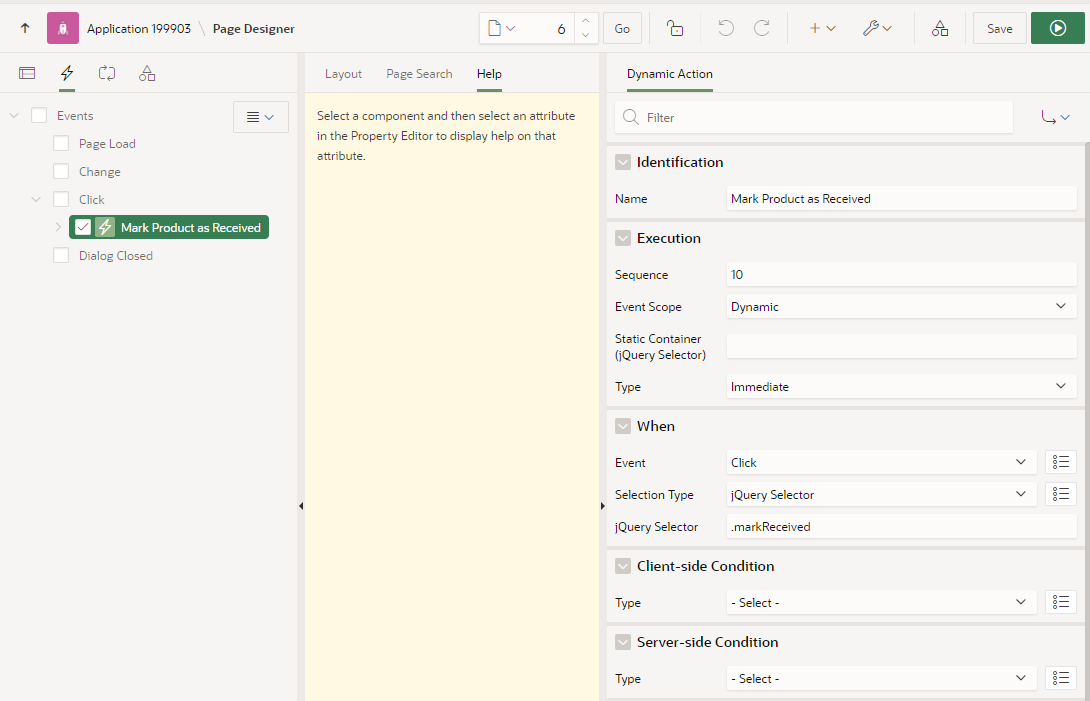
Go to the Dynamic Action tab and create a new dynamic action for a Click event.

Name: Mark Product as Received
Event Scope: Dynamic
Event: Click
Selection Type: jQuery Selector
jQuery Selector: .markReceived
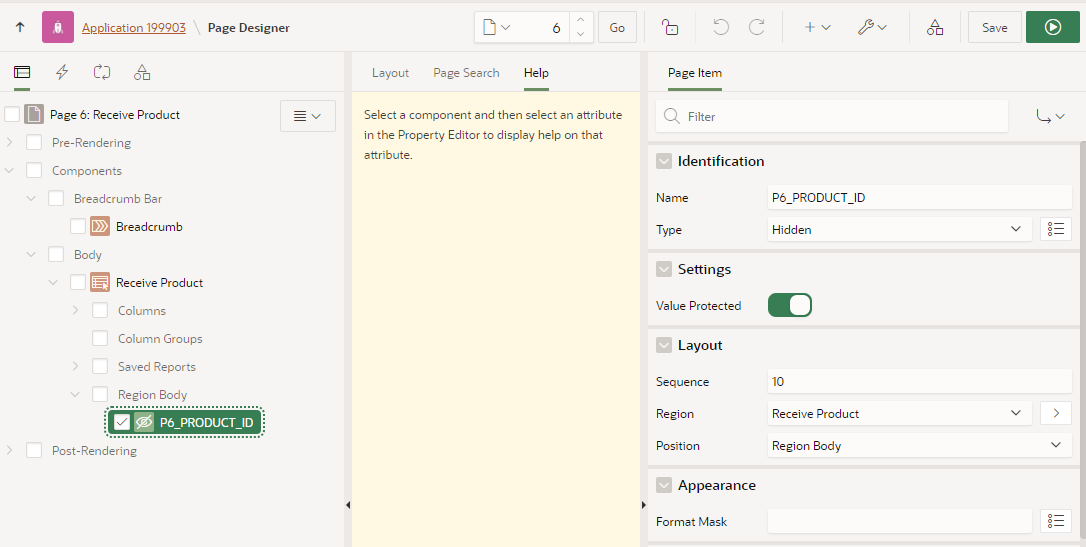
Create a hidden item P6_PRODUCT_ID.
Next, we will create below True Actions:
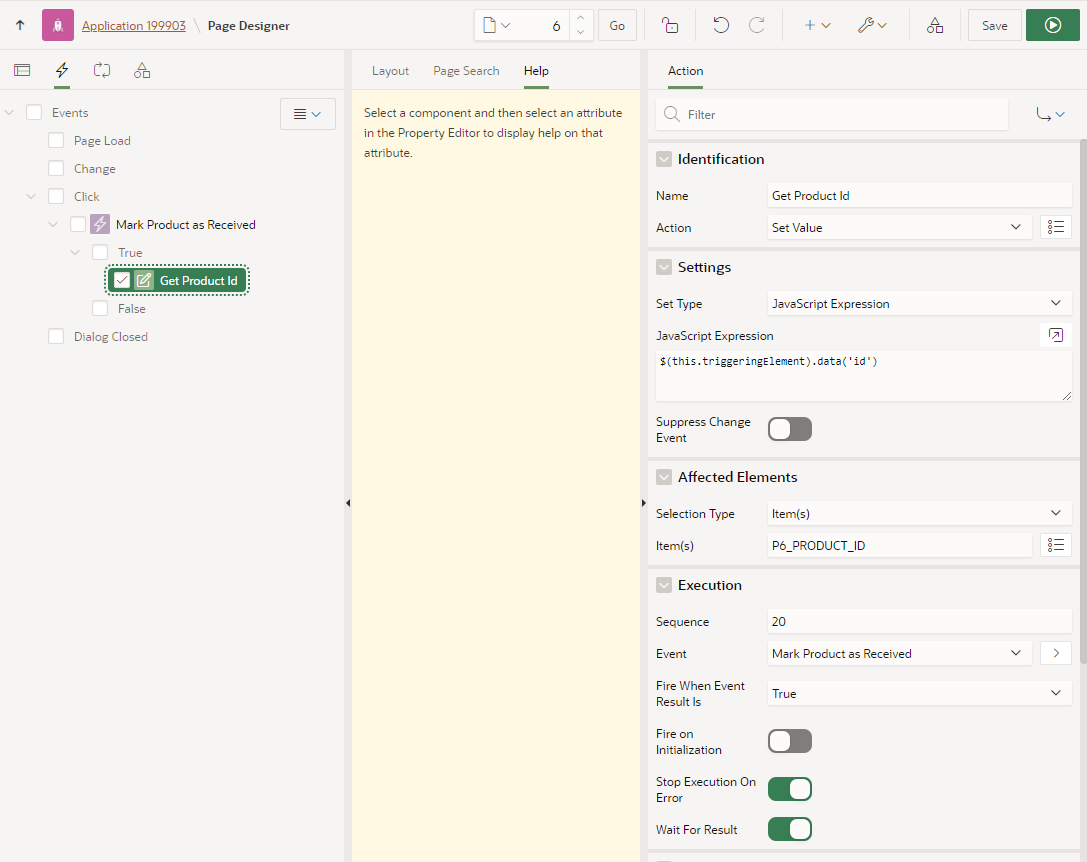
Get Product Id
Name: Get Product Id
Action: Set Value
Set Type: JavaScript Expression
JavaScript Expression: $(this.triggeringElement).data('id')
Selection Type: Item(s)
Item(s): P6_PRODUCT_ID
Fire on Initialization: No
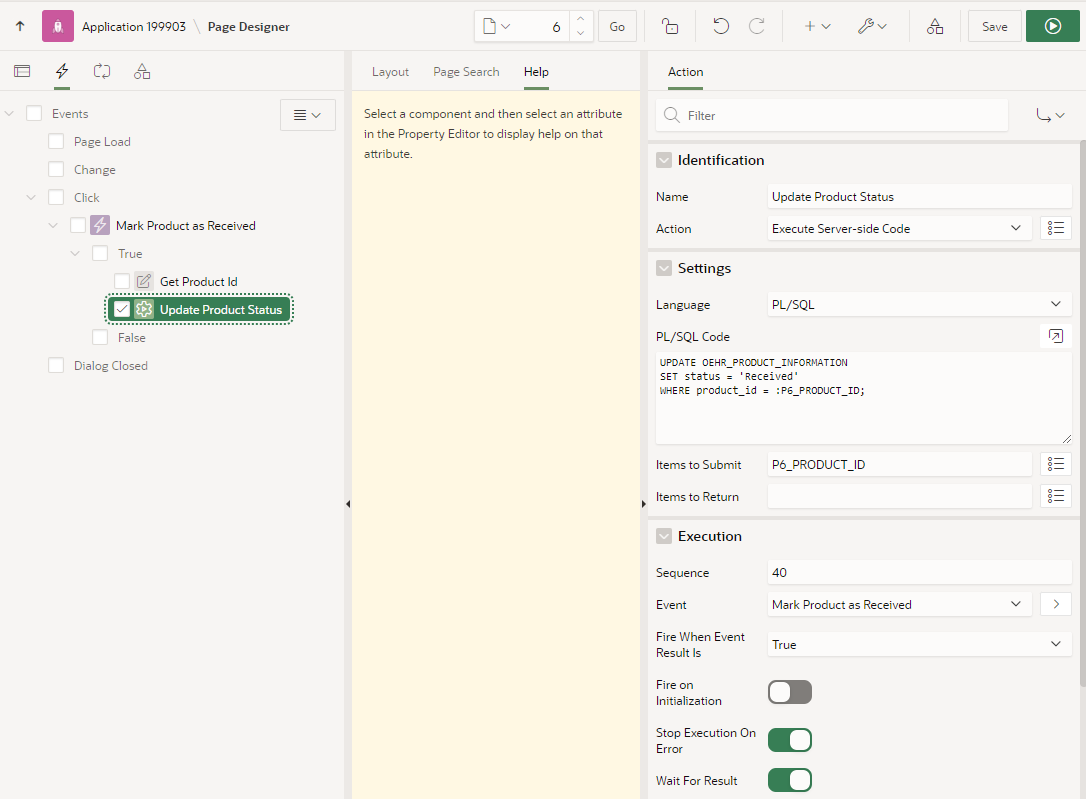
- Update Product Status
Name: Update Product Status
Action: Execute Server-side Code
Language: PL/SQL
PL/SQL Code:
              UPDATE OEHR_PRODUCT_INFORMATION
              SET status = 'Received'
              WHERE product_id = :P6_PRODUCT_ID;
Items to Submit: P6_PRODUCT_ID
Fire on Initialization: No
- Refresh Report
Name: Refresh Report
Action: Refresh
Selection Type: Region
Region: Receive Products
Fire on Initialization: No
Save and Run the report.
Now when you click on the gear icon in the "Mark as Received" column, it will update the status of the product to 'Received' and display the check icon.
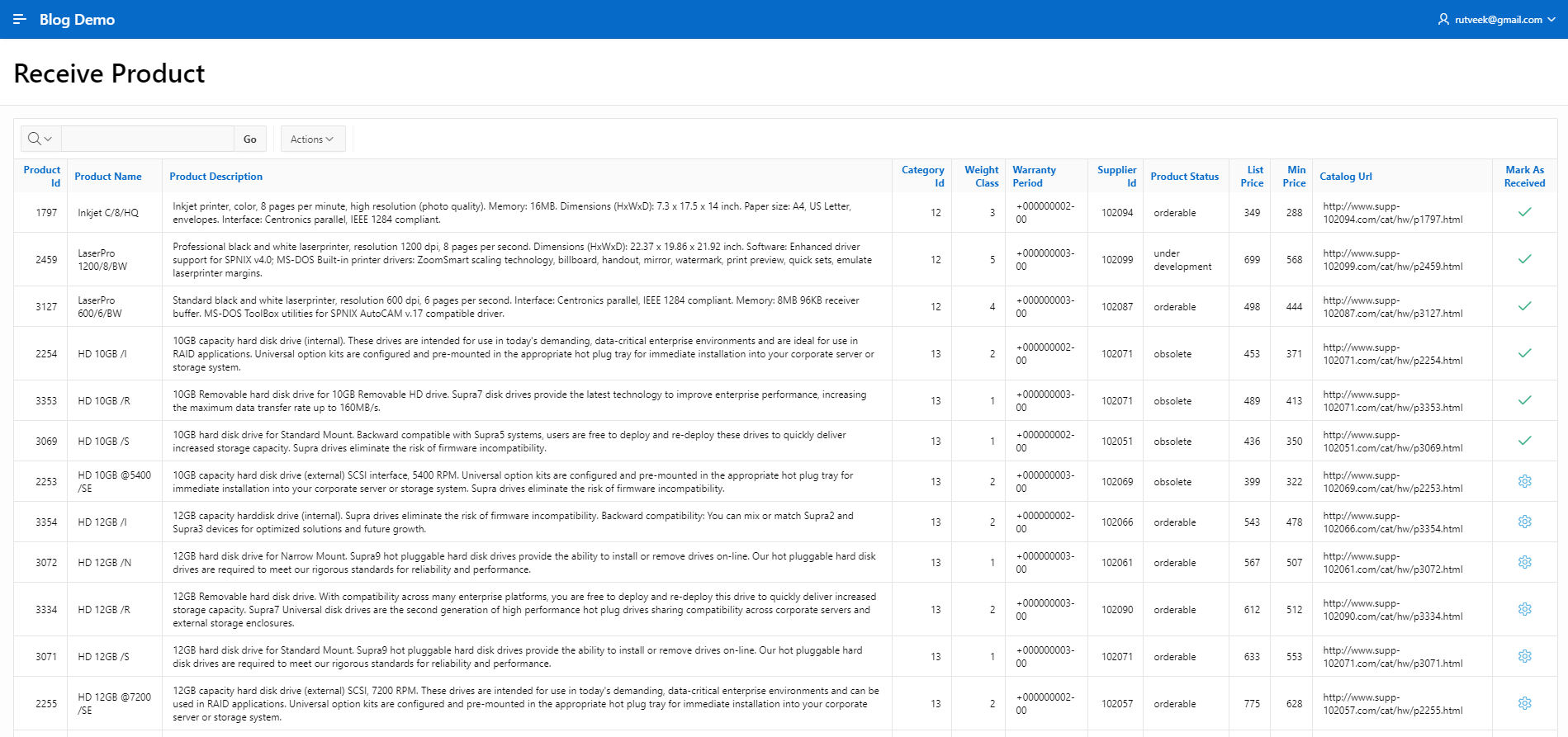
This is functioning as per our requirement. However, there is still one issue.
When you download the report ( from Action -> Download ), you'll notice that the "Mark as Received" column displays the HTML expression, which is not the desired outcome for the user.
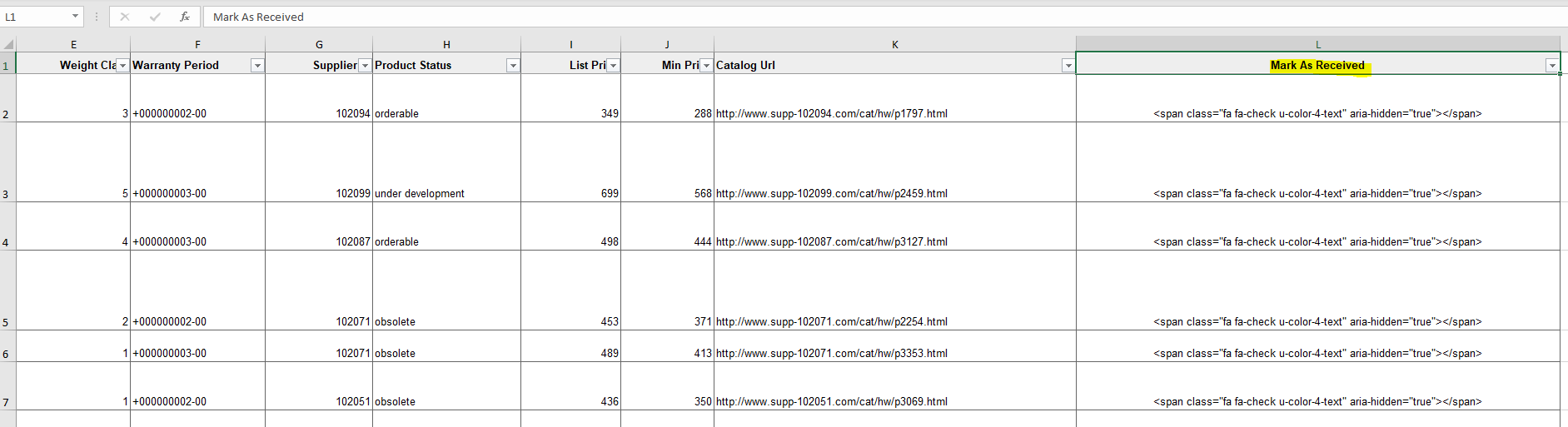
The reason behind this is that we embedded the HTML expression directly into our query. Typically, it's not advisable to mix data and formatting directly in the query; instead, it's better to keep them separate.
In the next blog, we'll explore how to address this issue using HTML Expression.
Comments
Join the discussionNo comments yet. Be the first to comment.