Linking to Oracle APEX Interactive Report

One key feature within Oracle APEX is Interactive Reports (IR), which offer rich data analysis out-of-the-box and can be customized by end-users for sorting, filtering, and more. End-users can also save their customized reports as private reports, exclusively accessible to them.
Developers also have the option to customize the report and save it as a public report, which is accessible to all users. Developers can create two types of save report for an interactive report: Primary and Alternative.
Navigate to Action -> Report -> Save Report. A pop-up window will appear for saving the report. Choose "As Default Report Settings" from the dropdown list.
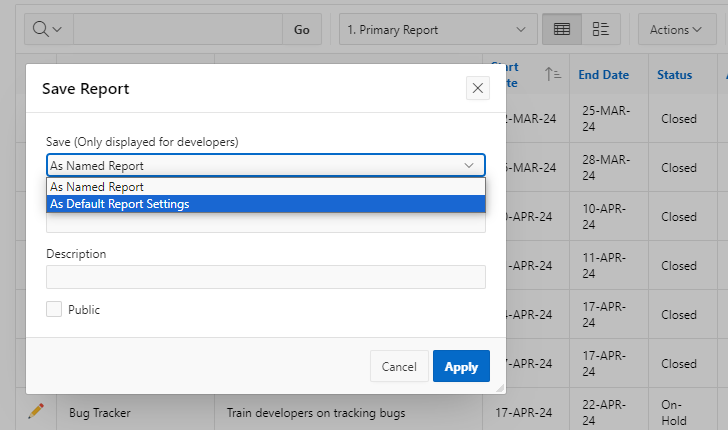
A pop-up window will appear to Save Default Report.

Primary Report:
This is the default layout of an interactive report that loads when a user first visits the page containing the interactive.
The developer sets up this layout during application development, and it's commonly used to define what all users will see by default when they visit a particular interactive report page.
Changes made to filters, highlights or other controls by end-users are temporary and won't affect this original configuration unless explicitly saved on same.
Alternative Reports:
These are additional pre-configured reports that developers can create and save for giving users quick access to multiple customized reports under same IR frame.
Users can switch between these alternate reports using Report drop-down list.

Often a time we have a requirement in our application to allow users to directly navigate to one of these saved reports while applying the filter on any of the report columns. From instance, on dashboard, you have a bar chart that display the total employees by department. When user click on any of the bar of the chart, you want user to redirect to specific interactive report to view the detail of all the employees within that department.
Linking to an Oracle APEX interactive report involves creating a URL that directs users to a specific view or state within the interactive report. By linking to interactive reports, developers can provide users with convenient navigation and access to relevant data views.
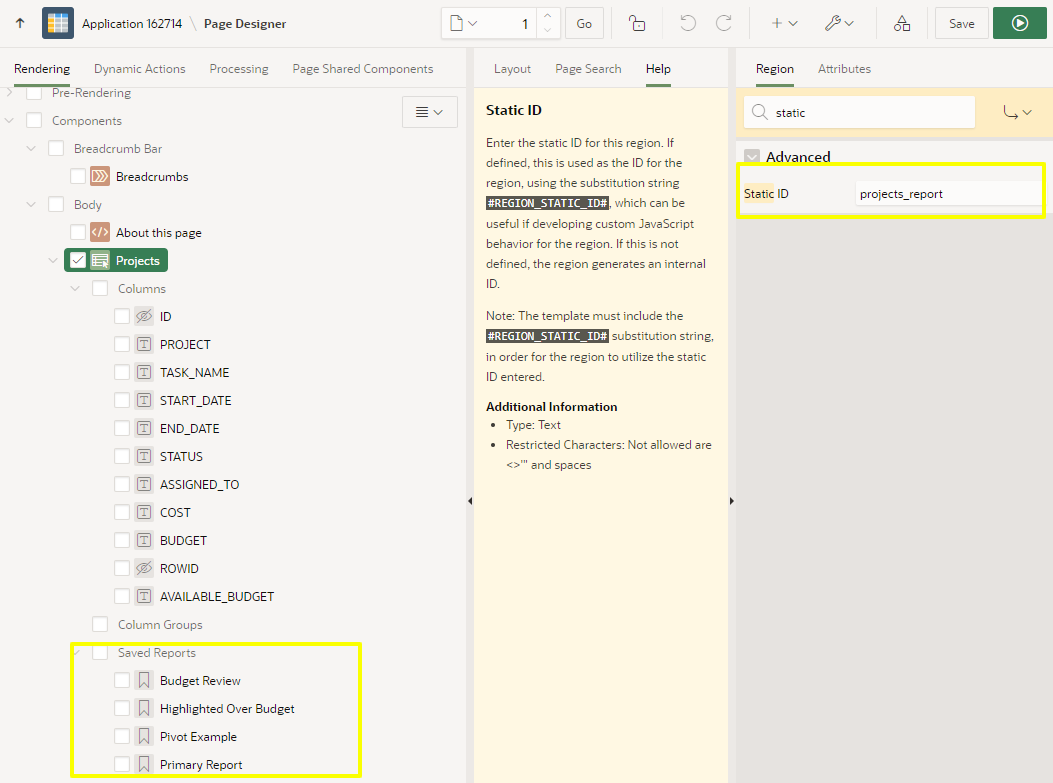
In this blog post, we will understand the URL structure of Interactive report page for linking. I am considering the interactive report of the "Sample Reporting" sample app which has one primary report and three alternative report. Static Id of this report is "projects_report".
First, it's important to understand the URL syntax of the Oracle APEX.
Oracle APEX supports two types of URL syntax:
f?p Syntax
 https://hostname:port/ords/f?p=App:
                                Page:
                                Session:
                                Request:
                                Debug:
                                ClearCache:
                                itemNames:
                                itemValues:
                                PrinterFriendly
Friendly URL Syntax ( First introduced in APEX 20.1)
https://hostname:port/ords/r/path_prefix/app_alias/page_alias?parameters
URL syntax for the linking to interactive reports utilize the Request value and ItemNames section of the URL.
Example 1: Link to a specific saved report
To link to a specific saved report, use the following syntax in the Request value section of the URL.
IR[region static ID]_<report_alias>
Where,
region static ID: Static Id of the Interactive Report region. This is a optional parameter if you have single interactive report region on the page. But if you have multiple interactive regions on the page, then you have to specify the static id of the region.
report_alias: Alias of the saved report to which you want to navigate to. Each saved report has a specific alias. APEX assigns a default alias when you save a report as a primary or alternative report. You can change this alias to a more meaningful name. I have renamed the alias for all the reports as below:
Budget Review: budgetreview
Highlighted Over Budget: overbudget
Pivot Example: pivot
Primary Report: primary

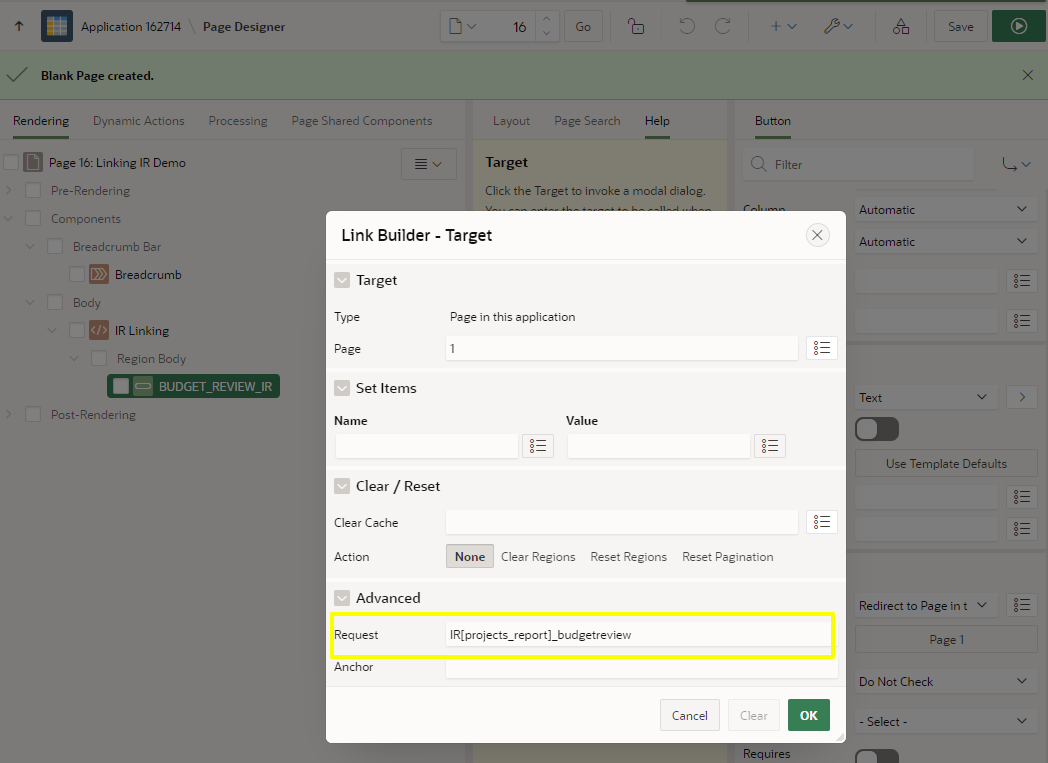
To navigate to Budget Review report, provide below request value in the URL syntax
IR[projects_report]_budgetreview
I created a new page and added a button. For the button action, I selected "Redirect to page 1" (which contains our interactive report) and used the above-mentioned syntax for the Request value.
Legacy URL syntax
https://apex.oracle.com/pls/apex/f?p=162714:
                                     1:
                                     14589143828607:
                                     IR[projects_report]_budgetreview::::
Friendly URL Syntax
https://apex.oracle.com/pls/apex/r/oradb1/sample-reporting/interactive-report?
request=IR[projects_report]_budgetreview
Example 2: Linking to a report by passing filter criteria.
To create a filter on an interactive report within a link, use the itemNames and itemValues section of the URL.
IR[region static ID]<operator>_<target column alias>
Where,
region static ID: Static Id of the Interactive Report region. This is a optional parameter if you have single interactive report region on the page.
operator: Comparison operator. Valid values are:
C= ContainsEQ= Equals (this is the default). If an operator is not defined, a filter with equal operator is added.GTE= Greater than or equal toGT= Greater ThanLIKE= SQL Like operatorLT= Less thanLTE= Less than or equal toN= NullNC= Not ContainsNEQ= Not EqualsNLIKE= Not LikeNN= Not NullNIN= Not In (escape the comma separated values with a leading and trailing backslash, \)IN= In (escape the comma separated values with a leading and trailing backslash, \)ROWFILTER= Row Text Contains (this searches all columns displayed in the report with type STRING or NUMBER)
target column alias: Name of the report column on which you want to apply filter criteria.
To navigate to primary report and filter the Status column to display all closed projects, provide below item name and item value in the URL syntax:
IR[projects_report]EQ_STATUS:Closed
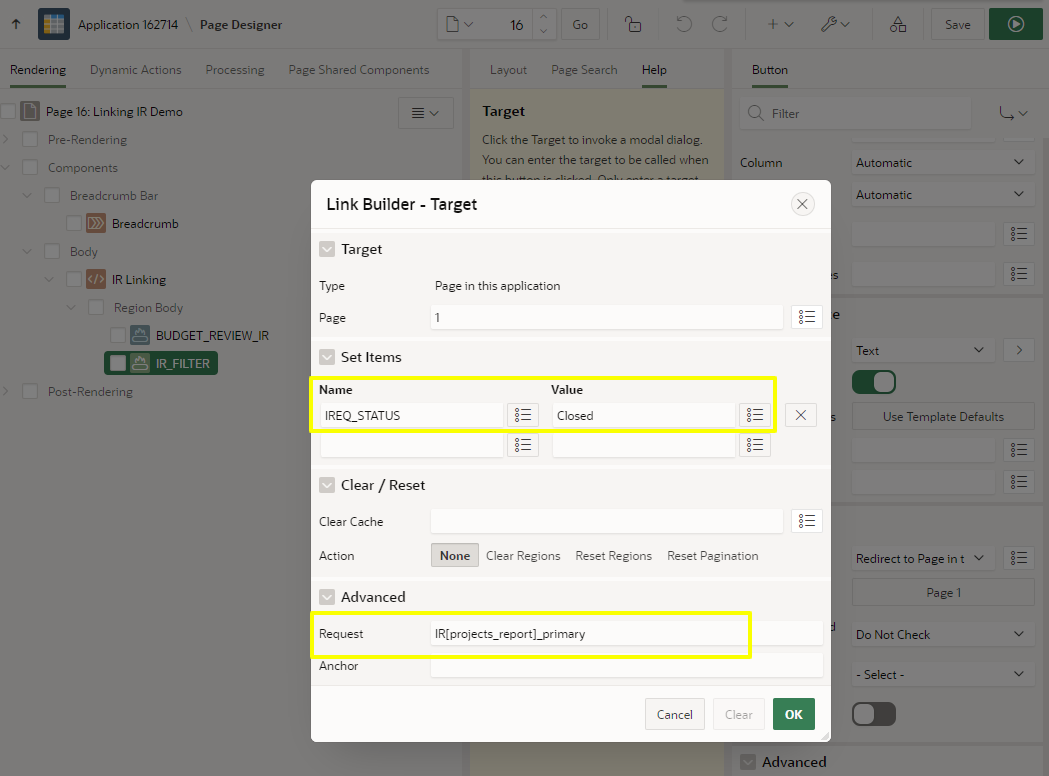
Legacy URL syntax
https://apex.oracle.com/pls/apex/f?p=162714:
                                     1:
                                     111783239709133:
                                     IR[projects_report]_primary:::
                                     IREQ_STATUS:Closed
Friendly URL Syntax
https://apex.oracle.com/pls/apex/r/oradb1/sample-reporting/interactive-report?
ireq_status=Closed
&request=IR[projects_report]_primary
&session=111783239709133
To create a link that will add a "Row Text Contains" filter which searches all columns displayed in the report use ROWFILTER as the target column alias in the item name syntax and add a filter value in the item value section of the URL.
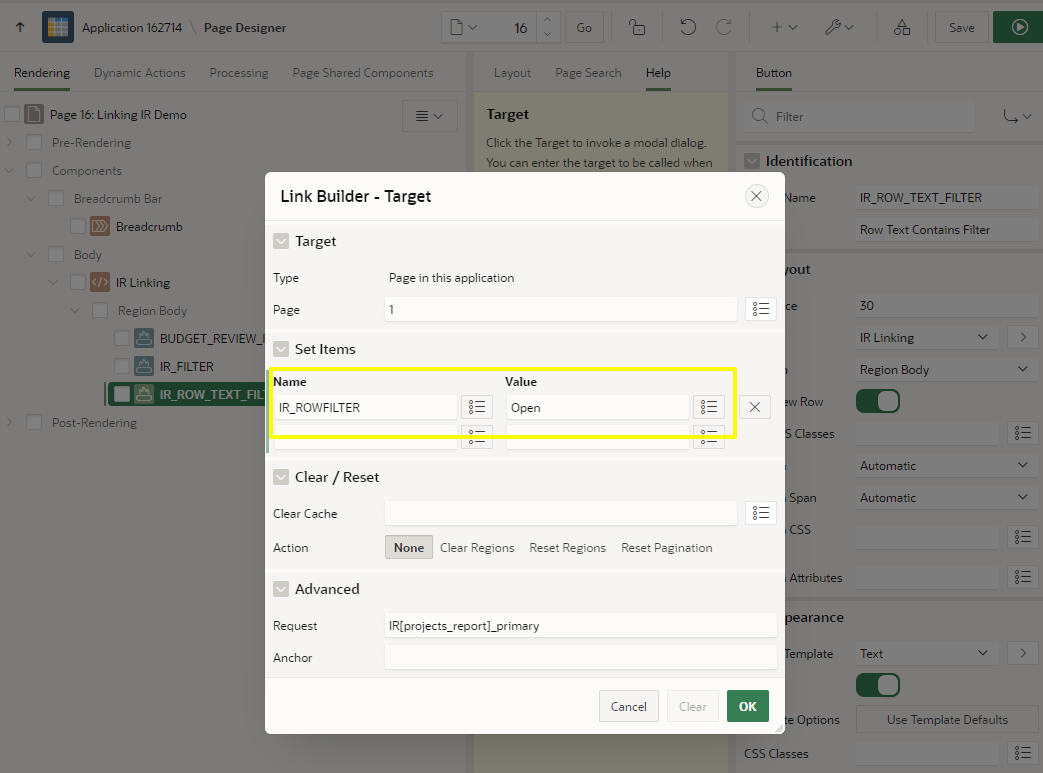
Example 3: Linking to reset, clear, or reset pagination of the interactive report
To reset, clear, or reset pagination of the interactive report, use the ClearCache section of the URL syntax. Use the following syntax in the Clearcache section:
RRResets an interactive report and pagination.
This is equivalent to the end user choosing the Reset option from the interactive report Actions menu on the target page.
The report is returned to the default report settings specified by the developer or saved by the user.
CRClears interactive report and resets pagination.
This clears all of the session report settings such as control break, aggregate, flashback, chart, number of rows to display, filter, highlight, computation, group by, and pivot.
RP- Resets interactive report pagination.
If the page has multiple interactive reports, specify the region's static ID along with the report alias in the Request section of the URL as mentioned earlier to clear a specific interactive report. Mentioning one of the above value in the ClearCache section without specifying a saved report alias in the Request section clears the default primary report.
To navigate to primary report to display all the projects having cost less then 500 and to clear the report and reset the pagination:
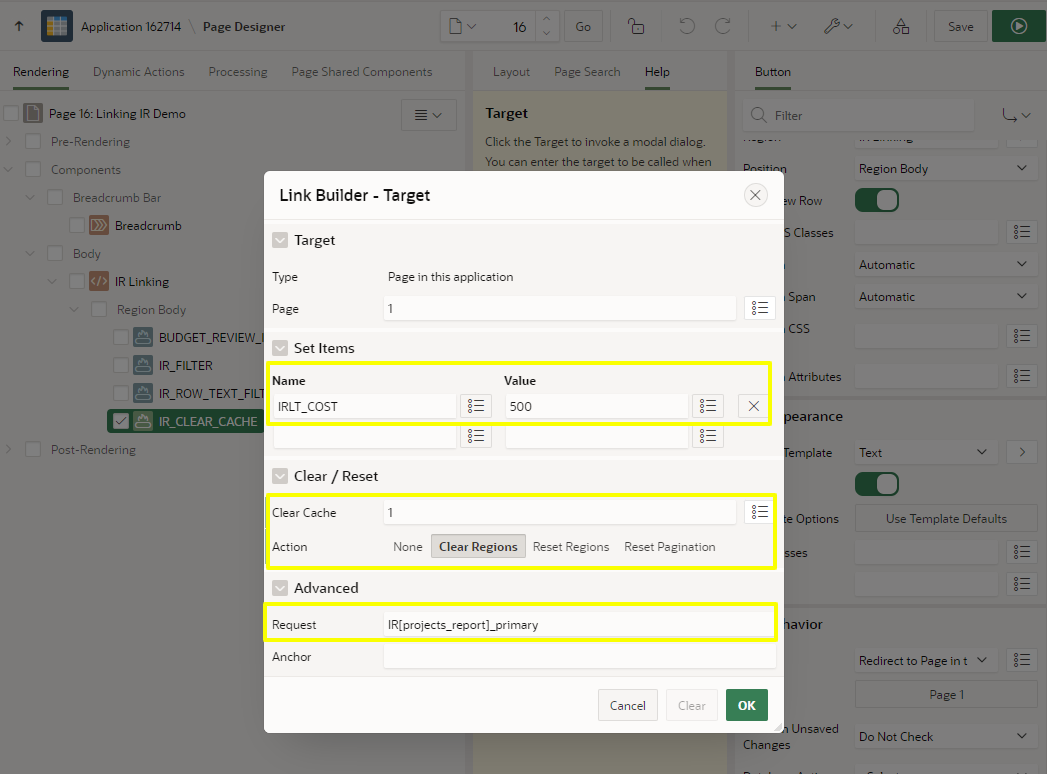
Legacy URL syntax
https://apex.oracle.com/pls/apex/f?p=162714:
                                     1:
                                     111783239709133:
                                     IR[projects_report]_primary::
                                     CR,1:
                                     IRLT_COST:500
Friendly URL Syntax
https://apex.oracle.com/pls/apex/r/oradb1/sample-reporting/interactive-report?
irlt_cost=500
&request=IR[projects_report]_primary
&clear=CR,1
&session=111783239709133
Comments
Join the discussionIn 26.1 it gets confusing, report urls gets generated using static_id like f?p=&APP_ID.:600:&APP_SESSION.:IR[work-orders-in-progress]_sna-report BUT DON'T WORK until you set HTML DOM ID for the IR